Installation
A MAIA Plus deployment is three components that have to agree with each other: a PostgreSQL database with pgvector, the MAIA Plus application shipped as a signed package with Bun-compiled binaries, and a Python runtime for model training. This page explains what each one does, how the standard and baseline builds differ, and the install sequence — separately for each platform.
What you are installing
Section titled “What you are installing”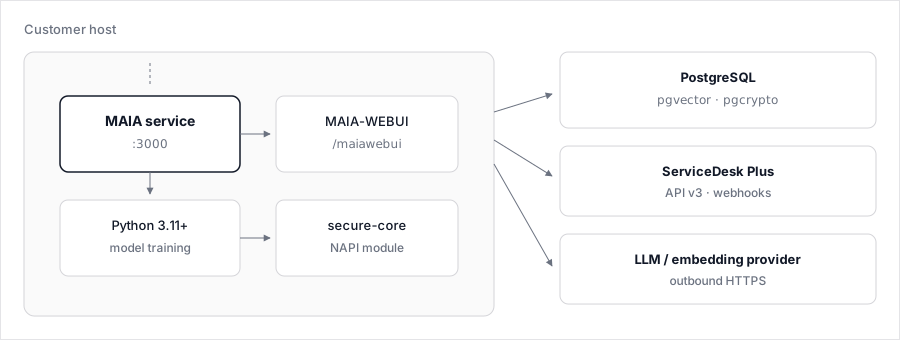
The service is the only process that talks to the database, to ServiceDesk Plus and to the provider; Python and secure-core are processes and modules it loads.
| Component | Role | Why it is separate |
|---|---|---|
| PostgreSQL + pgvector | System of record for configuration, audit, memory and vectors | Vectors are stored in the database (vector(1024) by default), so the database must be reachable before the service starts |
| MAIA Plus application | The Bun-compiled service plus the WebUI build, secure core and maintenance binary | Ships as a signed package; nothing is compiled on the customer host |
| Python 3.11+ | Trains assignment models on the host | The training job is a Python process spawned by the service, with its own package set |
The application does not require a separately installed Node.js. The binaries are produced with bun build --compile, so the runtime is inside the executable.
Choose your platform
Section titled “Choose your platform”The install path differs by operating system, so the two procedures are separate articles-worth of steps below. Both end in the same place: a service on port 3000 and the setup wizard.
| Your host | Use | Package you need |
|---|---|---|
| Linux (Ubuntu 22.04+, Debian 12+, RHEL-family 8+) | Install on Linux — package plus systemd unit | mwtsolutions-maia-linux-<version>.zip |
| Windows Server 2016+ | Install on Windows — the all-in-one installer, or the package-only sequence | MAIA-AllInOne-<version>.zip (installer) or mwtsolutions-maia-windows-<version>.zip |
| Either, no AVX2 | Same steps, baseline artifacts | …-linux-baseline, …-win-baseline.exe |
Everything after the install — the wizard, the ServiceDesk Plus connection, the first provider, model training — is the same on both platforms, and is documented once, below.
Standard versus baseline builds
Section titled “Standard versus baseline builds”Both variants are built from the same source and behave identically. They differ only in the CPU instruction set the compiled runtime may use.
| Build | Standard | Baseline |
|---|---|---|
| Bun compile target | bun-linux-x64, bun-windows-x64 | bun-linux-x64-baseline, bun-windows-x64-baseline |
| Linux artifact | mwtsolutions-maia-linux | mwtsolutions-maia-linux-baseline |
| Windows artifact | mwtsolutions-maia-win.exe | mwtsolutions-maia-win-baseline.exe |
| Requires AVX2 | Yes | No |
| Use when | The host CPU supports AVX2 (default for modern x64 servers and VMs) | The host is an older VM or a hypervisor that masks AVX2 |
Check the host before you choose — Linux:
grep -o -m1 avx2 /proc/cpuinfo || echo "no AVX2 -> use baseline"Windows (PowerShell):
(Get-CimInstance Win32_Processor).Name# AVX2 is present on every supported Windows Server SKU from 2016 onward;# it is masked on some hypervisor profiles — confirm with the platform owner.The symptom of running the standard binary on a CPU without AVX2 is immediate: the service exits with Illegal instruction and never binds the port. Switch to the baseline artifact — no data change, no reinstall.
The maintenance binary is always shipped in its baseline form, because it must run on any host, including one that cannot start the standard service.
Prerequisites
Section titled “Prerequisites”| Requirement | Detail | Check |
|---|---|---|
| Operating system | Windows Server 2016+ (x64), or Ubuntu 22.04+, Debian 12+, or a systemd RHEL-family distribution (RHEL 8+, CentOS Stream, Rocky, Alma) | systemctl --version / [System.Environment]::OSVersion |
| Architecture | x64; AVX2 optional | uname -m, grep avx2 /proc/cpuinfo |
| PostgreSQL | 18 or newer, with the pgcrypto and vector extensions, reachable from the host | psql --version |
| PostgreSQL tools | pg_dump and pg_restore on PATH | pg_dump --version |
| Python | 3.11 or newer, absolute path recorded in configuration | python3 --version |
| Free port | 3000 by default | ss -tlnp | grep 3000 / Get-NetTCPConnection -LocalPort 3000 |
| Tools | unzip, curl, openssl, bash (Linux); PowerShell as Administrator (Windows) | which unzip curl openssl |
| Package | Signed ZIP plus .manifest.json and .sig | check step below |
Hardware, supported versions and the pgvector-driven sizing baseline are on Platform support and sizing.
The embedding dimension is a compatibility contract: PGVECTOR_DB_VECTOR_DIMENSION (default 1024) must equal the dimension of the embedding model you later select under AI Provider. A mismatch is not repairable by configuration alone — it requires re-indexing.
Install on Linux
Section titled “Install on Linux”Six steps from the signed package to the setup wizard. Every command runs on the MAIA host as a user who can sudo.
1. Package and signature
Section titled “1. Package and signature”Unpack outside the install root — never into /opt/maia — then verify the signature before anything runs.
-
Extract the package.
Terminal window mkdir -p /srv/maia-releases/<version>unzip /srv/downloads/mwtsolutions-maia-linux-<version>.zip -d /srv/maia-releases/<version>cd /srv/maia-releases/<version>/update -
Verify the signature.
Terminal window ./maia-maintenance-linux check
2. Install and start the service
Section titled “2. Install and start the service”-
Run the read-only preflight.
-
Install.
Terminal window ./maia-maintenance-linux install --install-root /opt/maiasudo ./maia-maintenance-linux install --install-root /opt/maia --confirmThe preflight refuses a non-empty root and never overwrites an existing installation — use the update path for that.
--confirmcopies the payload atomically to/opt/maia/current, seeds.envandssl/outside the payload directory, creates the service user and writes the systemd unit. -
Start the service.
Terminal window sudo systemctl daemon-reloadsudo systemctl enable --now maia.servicesystemctl status maia.service --no-pager
3. Setup wizard
Section titled “3. Setup wizard”-
Continue in the setup wizard. On the host itself,
http://127.0.0.1:3000/maiawebui/setup; from any other machine use the HTTPS address your reverse proxy serves, for examplehttps://<maia-host>/maiawebui/setup.The wizard sets the administrator password and the database, ServiceDesk Plus and provider credentials. Until it finishes the installation is unconfigured, so port 3000 must not be reachable from outside the host — complete the wizard locally, then put the proxy in front of it.
For a host without AVX2, point ExecStart in the unit at mwtsolutions-maia-linux-baseline before starting.
The Linux-only follow-ups are Python for model training, which creates a virtual environment under the install root, and, if the host is not already secured, a reverse proxy in front of port 3000.
Install on Windows
Section titled “Install on Windows”All-in-one installer
Section titled “All-in-one installer”The supported Windows path is the interactive all-in-one installer. It installs the application, the PostgreSQL-with-pgvector runtime, the Python runtime and the ServiceDesk Plus proxy in one session: Windows all-in-one installer.
| Stage | What it does |
|---|---|
| Preflight | Verifies the package, the host and the free ports |
| Application | Installs the payload and registers the MAIA service through NSSM |
| Database | Installs PostgreSQL with pgvector and creates the MAIA database |
| ServiceDesk Plus | Creates the read-only role, the pg_hba.conf rule and the /maia proxy contexts |
| Preparation | Writes .env, ssl/ and the installer handout |
| Hand-off | Stops at the setup wizard |
Package-only sequence
Section titled “Package-only sequence”Use this path for a package-only install or a repair, when PostgreSQL and the proxy already exist.
- Extract the signed ZIP outside the install root, for example
D:\MAIA-Releases\<version>. - Run
MAIA-MAINTENANCE.exe checkto verify the package signature. - Run the install action. It copies the payload atomically into
<install-root>\current, including the WebUI build, workers,ddl.sql,unified_schema.sql,nssm.exeand the release manifest. - The maintenance tool registers the
MAIAservice through NSSM, pointing atcurrent\mwtsolutions-maia-win.exewith the install root as the working directory. It does not overwrite an existing service. - Start the service, then open the setup wizard:
http://127.0.0.1:3000/maiawebui/setupon the host, or the HTTPS address of your reverse proxy. Do not complete the wizard over plain HTTP from another machine.
The Windows-only follow-ups are the ServiceDesk Plus proxy configuration and the pg_hba.conf rule for the read-only account, both performed by the all-in-one installer and described in that article.
Python for model training
Section titled “Python for model training”This step is identical on both platforms; only the paths differ. The service spawns Python for assignment-model training, so it needs an interpreter with the training packages, and it needs to know where that interpreter is.
Create the environment
Section titled “Create the environment”Linux:
python3 -m venv /opt/maia/venv/opt/maia/venv/bin/pip install pandas numpy lightgbm scikit-learn requests matplotlib seaborn optuna kaleido plotlyWindows (PowerShell):
python -m venv C:\MAIA\venvC:\MAIA\venv\Scripts\pip.exe install pandas numpy lightgbm scikit-learn requests matplotlib seaborn optuna kaleido plotlyPoint MAIA at the interpreter
Section titled “Point MAIA at the interpreter”Record the interpreter path — the python executable inside the environment, not pip — in ownModel.pythonPath:
| Platform | ownModel.pythonPath |
|---|---|
| Linux | /opt/maia/venv/bin/python3 |
| Windows | C:\MAIA\venv\Scripts\python.exe |
Without this, everything except assignment-model training works; training fails when the job starts. The same section is where a host without Python 3.11+ fails first, so check python3 --version before the wizard rather than after the first training run.
First start
Section titled “First start”The setup wizard collects the PostgreSQL connection, the ServiceDesk Plus connection and the first provider, then generates the administrator credentials and the secrets. After it completes:
curl -s -o /dev/null -w '%{http_code}\n' http://127.0.0.1:3000/api/v1/status200 means the service is up and the database is reachable. FATAL_DB_UNAVAILABLE in the log means the opposite: check PGVECTOR_DB_HOST and PGVECTOR_DB_PORT, the firewall, and that the extensions exist.
Limits and known failure modes
Section titled “Limits and known failure modes”| Symptom | Cause | Action |
|---|---|---|
Illegal instruction at start | Standard binary on a CPU without AVX2 | Switch to the baseline artifact |
BLOCKED: root must be empty | The install root already contains a payload | Use the update path, or a new empty root |
Permission denied from systemd | Wrong User/WorkingDirectory or ownership | chown -R maia:maia /opt/maia, then read journalctl -u maia.service |
FATAL_DB_UNAVAILABLE | PostgreSQL unreachable or missing extensions | Check host, port, credentials, CREATE EXTENSION vector |
Migration ledger mismatch | A migration file was edited after being applied | Migrations are forward-only; never edit an applied file |
Failed to bind 0.0.0.0:3000 | Port in use | Free the port or change PORT |
Hardware guidance and the support status of each platform are on Platform support and sizing: that page distinguishes supported from verified and gives the sizing baseline. Treat sizing as a starting point agreed with the implementation team, not as a guarantee for every workload.
Related topics
Section titled “Related topics”Windows all-in-one installer · Platform support and sizing · Before you begin · Upgrade and rollback · Troubleshooting: connections